There’s a gap between how fast you think and how fast you can type – and that’s where ideas go to die.
Most people type between 35 and 45 words per minute. Most people speak at 120 to 150 words per minute. That three-to-one difference means that by the time you’ve finished typing a thought, you’ve already half-forgotten what came next. Writing feels laboured. Momentum stalls. The idea that seemed sharp in your head arrives on the page looking thin.
Dictation closes that gap. And Voicenotes makes dictation smarter than it has ever been.
Not just speech-to-text. Not just a transcript sitting in a folder somewhere. Voicenotes takes what you say and turns it into clean, organized, searchable, AI-ready notes available on every device, retrievable at any time, and connected to everything you work with.
What Voicenotes does
Before getting into dictation specifically, it helps to understand where it sits within Voicenotes, because the app does three distinct things.
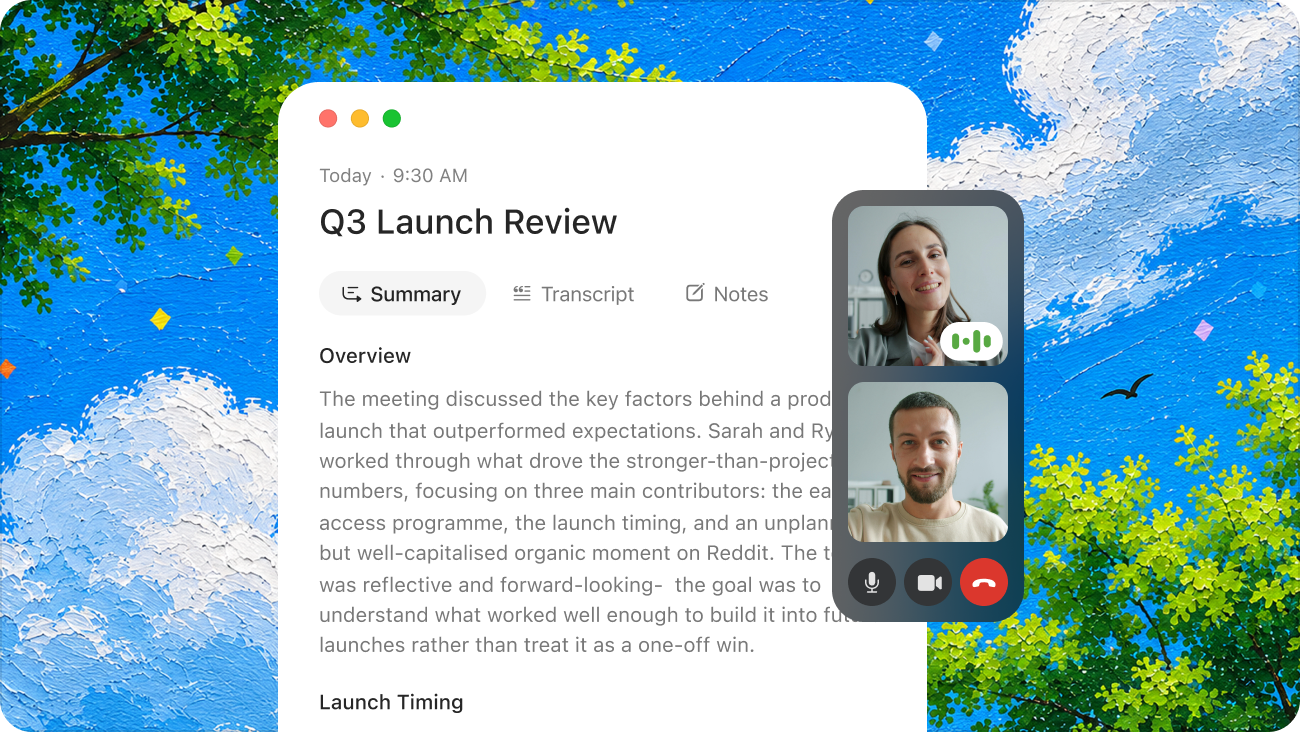
Meetings. Voicenotes records your meetings – in person or on any video platform – and automatically produces a full transcript, a structured summary, key decisions, and action items. No designated note-taker. You have the meeting, and a complete record is waiting for you when it ends.
Memos. Memos are the general-purpose capture layer: audio journalling, to-do lists, ideas, thoughts worth keeping. You record a memo, and Voicenotes transcribes it, summarises it, and files it in a searchable, permanent library connected to your other notes.
Dictation. This is something different. Dictation isn’t about keeping a note – it’s about typing with your voice, anywhere you’d normally type. Emails, documents, search bars, messages, forms. Whatever you want to write, you speak instead. Dictation history is stored separately from your memos and meeting notes, because most of the time what you dictate is just what you needed to get onto the screen – it’s not something you’re archiving. The features are distinct, and they don’t get in each other’s way.
The difference between dictating into Voicenotes and dictating into a generic speech-to-text app is the difference between capturing an idea and actually doing something with it.
In this article, we’ll go deep into dictation.
Typing with your voice, anywhere
The core idea behind Voicenotes dictation is simple: wherever your cursor is, you can speak instead of type. You’re not recording a note to come back to later. You’re just replacing the keyboard in real time – composing an email, filling in a brief, writing a message, drafting a report – and doing it three times faster than typing allows.
On Mac and Windows
It works across every platform Voicenotes supports, and the experience is tailored to each one.
On desktop, Voicenotes dictation works through a customisable keyboard shortcut. You set the shortcut to whatever feels natural, and from that point on, anywhere you can type – any app, any text field, any document – you hold the shortcut and speak. Your words appear on screen in real time. Release the shortcut and you’re done.
There’s no switching apps, no copy-pasting from a separate transcription window, no workflow interruption. You’re in your email client, your browser, your writing app, and you just speak. The text lands exactly where your cursor is.
This is genuinely useful for anyone who spends a significant part of their day writing. Composing a long email? Hold the shortcut and speak it. Filling out a detailed form? Dictate through it. Drafting a document? Speak the first version and edit from text. The shortcut becomes muscle memory faster than you’d expect.
On iPhone and Android
On mobile, Voicenotes dictation works through a dedicated voice keyboard. On both iOS and Android, you tap the Voicenotes keyboard just as you would any keyboard – it appears in any app that uses text input. Tap to activate it, speak, and your words are transcribed directly into whatever you’re typing in.
This means dictation on mobile isn’t limited to the Voicenotes app. It works in your messages, your email, your notes, your browser – anywhere the keyboard appears. You’re not switching context. You’re just speaking instead of tapping.
Why it’s worth building into your workflow
The speed advantage is real and immediate. But the bigger benefit is what happens to the quality of what you write when you remove the friction of typing.
Speaking is more natural than typing. When you dictate, you tend to write the way you actually think – in full sentences, with a more human rhythm. The laboured, slightly stilted quality that comes from composing word by word at a keyboard largely disappears. First drafts need less editing. Emails sound less like they were constructed and more like they were written by a person.
There’s also the capture problem. Some of the best thinking happens away from a desk – between meetings, during a commute, walking between appointments. On mobile, the Voicenotes keyboard means you can dictate a message, draft a reply, or get something down in the moment it occurs to you, without the slowness of thumb-typing standing between the thought and the screen.
What dictation is good for
A few practical uses that come up most often:
- Emails. Speak the content, review, send. Most emails can be dictated in under a minute.
- Messages. Stop thumb-typing long replies. Speak them.
- Forms and text fields. Anything that requires substantial text input can be handled faster by voice.
- Any situation where typing is awkward. Commuting, between meetings, one hand occupied – the mobile keyboard handles all of it.
- Documents and reports. Dictate a first draft at speaking pace, then edit. Dramatically faster than composing word by word.
A few tips
Don’t worry about filler words. Unlike typing, speaking naturally comes with “ums”, “uhs”, and half-finished sentences. Voicenotes dictation strips those out automatically — what lands on screen is clean text, not a transcript of how you got there. The quality is good now and continues to improve. Speak naturally and let it do the work.
You can whisper. If you’re in a public space, an open office, or anywhere you’d rather not speak out loud, you don’t have to. Voicenotes dictation picks up whispered speech just as accurately as normal speech. It’s a surprisingly useful feature that removes one of the more common objections to dictating on the go.
Set a shortcut you’ll actually use. On desktop, pick something you can hold comfortably with one hand. The shortcut should feel instinctive – like reaching for a key, not performing a keyboard combination.
For long-form content, use a memo instead. Dictation is built for getting words onto the screen wherever you’re working – emails, messages, documents. But if you’re writing something longer like a blog post or a report, the better approach is to record it as a Voicenotes memo and use the AI to shape it into a full, structured piece. You get the speed of speaking with the polish of a proper draft.
The bottom line
Typing will always have its place. But for everything from a quick message to a long report, there’s a faster way – and it’s been with you the whole time. On desktop, hold a shortcut and speak into whatever you’re working in. On mobile, tap the keyboard and dictate anywhere text goes.
The gap between thinking speed and typing speed is a real cost. Voicenotes dictation closes it.