The hard part was never having an idea. It was finding it again six weeks later. That’s why we created Voicenotes in the first place. The app makes idea capturing smooth and instant. You’ve probably recorded more useful thinking than you realize. Which brings us to this point:
Your notes shouldn’t just sit there
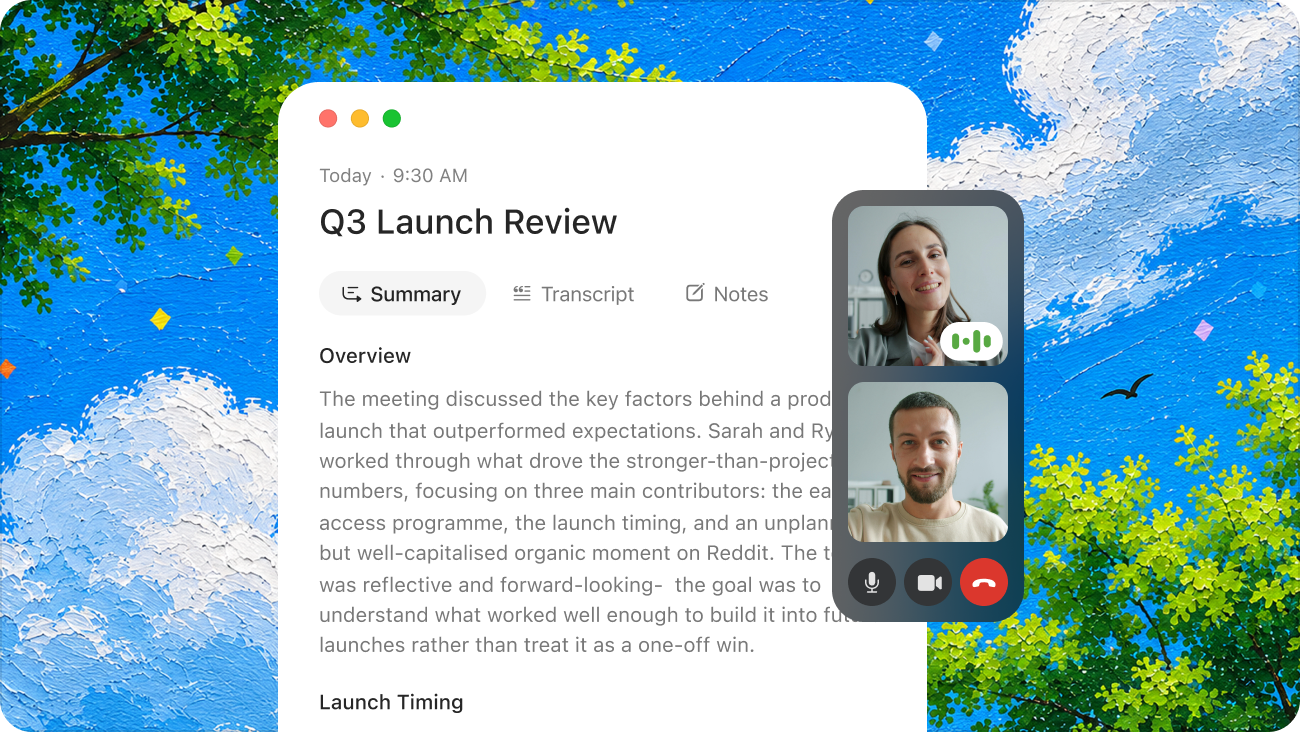
A meeting gets recorded without anyone breaking their train of thought. An idea that surfaces on a walk gets saved before it fades. Something half-formed gets spoken out loud before it disappears entirely.
Over time, that adds up to something genuinely useful – a personal archive of meetings, decisions, passing thoughts, and plans that never quite made it to a document.
The problem isn’t the capturing. It’s what happens after.
If you use ChatGPT to think and plan – and Voicenotes to capture ideas, meetings, and off-the-cuff thoughts – there’s always been a gap between the two. You’d copy-paste. Summarize by hand. Or just trust your memory.
A library is only useful if you can find what matters inside it, and most people can’t – not reliably. They remember recording something some time but not when or the specifics. They know a decision was made but not which call it came from. Ask AI is cool when you know what to ask for, but what about when you don’t know what to ask for?
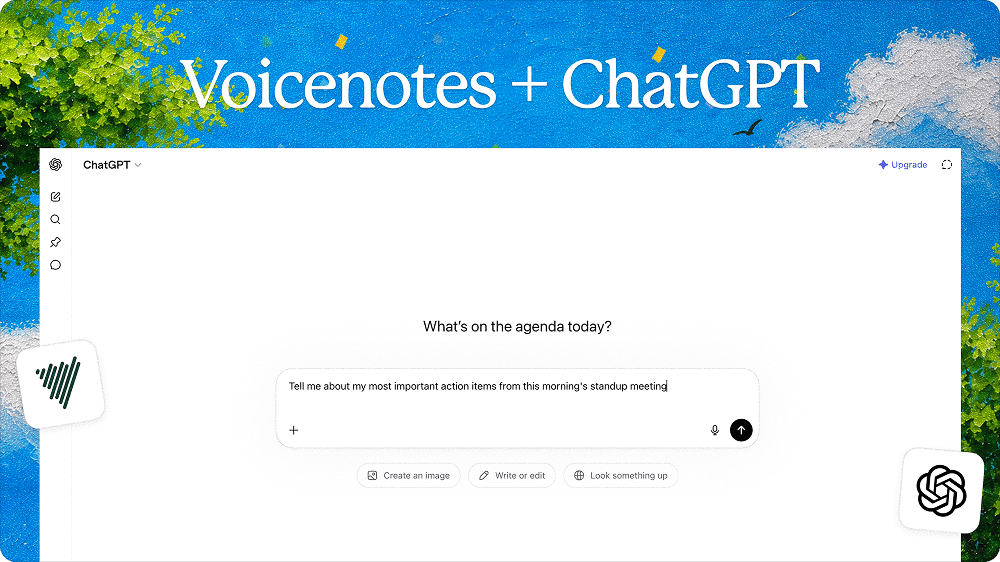
That’s the gap the Voicenotes MCP integration is designed to close. Check out this video by Jijo Sunny, Voicenotes founder, for more insights on how he uses it.
What MCP actually does
MCP (Model Context Protocol) is a standard that lets AI tools connect directly to external apps – not by importing files or pasting text, but by querying them in real time during a conversation.
When Voicenotes is connected via MCP, an AI assistant like ChatGPT can search your notes, read transcripts, surface related recordings, and work with what it finds – all within the same conversation, without you doing the manual legwork of finding the right note first.
The difference becomes clear when you compare two versions of the same request.
Without MCP: “Here’s a transcript from my last client call.
Can you summarize it?”
With MCP: “Find my last client call and draft a follow-up email with the decisions and next steps.”
The first version requires you to already know which note is relevant, open it, copy the right section, and bring it into the chat. The second version starts from how you actually think – you know who you spoke to, roughly when, and what you’re trying to do with it.
That’s a meaningful shift. The AI is no longer waiting for you to do the retrieval. You’re just asking.
Why keyword search isn’t enough
Personal notes are not written like documents. They’re messy, conversational, and inconsistent. You might say “new user experience” in one note, “activation” in another, and “onboarding” in a third – and all three are about the same problem.
Keyword search works when you know what you’re looking for and you happened to use the right words when you recorded it. Most of the time, neither of those is true.
The MCP integration uses semantic search, which means the AI is looking for meaning rather than matching exact strings. A question about onboarding can surface notes where you used different words but were clearly discussing the same thing.
What happens after the right notes are found is where it gets more interesting. The AI can compare notes from different dates, pull out recurring themes, identify what was decided versus what was still open, and turn scattered thinking into something more structured – without you having to do any of that manually.
The workflows that actually matter
The most useful applications aren’t dramatic. They’re the small moments where doing this manually would take just long enough that it usually doesn’t happen.
Before a meeting: Ask what was discussed last time with a particular client or team. Get a summary of what was agreed, what was left open, and what needs following up. Showing up prepared stops being a 10-minute ritual of scrolling through old notes.
After a meeting: Ask the AI to find today’s transcript and draft the follow-up. The output needs review before it goes anywhere – but you’re starting from the actual conversation, not a blank page and a vague memory.
When an idea has been developing across multiple notes: Some thinking doesn’t happen in one sitting. A feature idea might appear in a note from a walk, resurface after a customer call, and come up again in a product meeting. Ask the AI to find everything related to that idea and combine it into a coherent summary. That’s closer to what a “second brain” should actually do.
When you need context for planning: Ask it to use your recent notes about a launch to build a checklist, or to pull customer objections from your notes and group them by theme. The AI is working from what you actually said, not from generic inputs.
What makes this different from automation
Automation tools are built for predictable sequences. A note gets tagged, so it goes somewhere else. A form is submitted, so a task gets created. These are useful, but they require knowing the steps before you need them.
Most of the questions that actually come up during real work don’t have a fixed trigger:
“What have I said about churn recently?”
“Did we ever settle on the pricing change?”
“What were the main objections from recent customer calls?”
These aren’t “if this, then that” workflows. They require searching, reading, comparing, and summarizing before there’s anything worth returning. MCP handles that retrieval layer – the part that exists between “I have a question” and “I have the right context to answer it.”
How to set it up
Connecting takes two minutes:
- In ChatGPT, click your profile (bottom left) and go to Settings
- Open Apps and browse the app directory
- Search for Voicenotes and select it
- Click Connect – a new tab opens to Voicenotes
- Sign in if needed, then click Continue to authorize
You’ll be redirected back to ChatGPT with Voicenotes enabled. From there, mention @Voicenotes in any chat, or just ask naturally – “find my notes on the client call from last week” – and it’ll know what to do. Here’s a step-by-step guide to connect your Voicenotes account with your preferred AI assistant.
A few prompts to start with
The prompts that work best tend to sound like something you’d ask a person, not a search engine.
“Search my Voicenotes for anything about onboarding.”
Follow that with: “Which notes did you use?” – useful for checking that the AI found the right things before you act on what it tells you.
A few more worth trying early on:
- “What did I record this week?”
- “Find the most recent meeting transcript.”
- “What were the action items from my last client call?”
- “Look through my notes from the last 30 days and tell me what themes keep coming up.”
- “Find notes where I talked about pricing and group the ideas.”
- “Create a note from this conversation with the final decision.”
One thing worth keeping in mind
MCP makes retrieval much easier, but the AI is still interpreting what it reads. It can miss context, misread the tone of a note, or summarize something with more certainty than the original warranted.
For casual notes and rough planning, that’s usually fine. For anything that involves client commitments, legal details, pricing, or anything sensitive, it’s worth adding a quick review step: ask the AI which notes it used, then open the source if the details matter before acting on the output.
A quick check like that keeps the workflow fast without treating AI-generated summaries as automatically final.
On access and privacy
Voicenotes only becomes available to an AI tool after you’ve explicitly connected it and approved access. That access can be revoked at any time from your settings.
A few things worth being deliberate about: only connect Voicenotes to tools you actually trust, be careful in shared or company-managed AI workspaces where others may have visibility, and revoke access when you’re no longer using the integration. Notes that include sensitive conversations – personal, legal, medical – should stay out of AI workspaces where that data shouldn’t be processed.
The point
The hard part was never capturing an idea. It was finding it again six weeks later – or remembering that you’d already thought through something before starting from scratch.
Voicenotes already has a built-in Ask AI that knows your entire note history. If you live inside the app, that’s often all you need. But a lot of real work happens in ChatGPT – drafting, planning, deciding – and until now, none of your captured thinking could follow you there. You’d switch tabs, copy a transcript, paste it in. Or just wing it.
This closes that gap. Your notes become context inside the tool where you’re already working. Not as an export. Not as an attachment. Just there, when you ask.